Tips and tricks for ePave 5.1
Learning your application confirmation number. For those who file on paper and who do not use PAIR, the first time you get to learn your confirmation number is when the paper filing receipt shows up in the mail. This may be some weeks after filing. Those who file on paper and who use PAIR get to learn the confirmation number a week or two after filing, when the application gets into PAIR.
As it turns out, those who file with ePave are given the confirmation number in the acknowledgment receipt. You look at the "server response" table and one of the entries is "ICON1". The number next to the "ICON1" entry is the confirmation number.
Uninstalling ePave 4.1 first. Though the CD-ROM doesn't mention it anywhere, you need to completely uninstall ePave 4.1 before installing ePave 5.1. The way to uninstall ePave 4.1 is by means of the "add/remove programs" control panel.
Avoiding use of periods in path names. (Thanks to Jay Yablon for this one.) Jay had a problem with XPORT that the EBC helped him fix. If you have drawings in your application (as most do), the XPORT program looks for a .tif extension to recognize the drawings. If you have the tif files in a directory where any of the parent directories contain a period, that is a "." character (i.e., c:\Jay R. Yablon\client name\drawing.tif) it will find the first period, find no "tif" immediately thereafter, and choke on the file. So, you need to make sure there are no periods in the full pathname.
Dealing with the "Wrong format" error in ePave 5.1. When you are attaching a patent specification, an inventor's declaration, a power of attorney, an assignment, or a small-entity form, you may receive a "Wrong format" error. The most likely causes for this are (a) incorrect dots-per-inch resolution (it is supposed to be 300 by 300) or (b) incorrect compression (it is supposed to be "none" or "group 4") for a TIF image. To fix this, open the TIF image in Wang or Kodak Imaging, then click "page" and "properties". Check through the various property tabs to make sure the image is pure black and white, that it is 300 by 300, that it is group 4 compression, and that the dimensions are no greater than 8.5 by 11. Then click "save as" and save the file under its same name. Then try attaching the file again, and hopefully you will not receive this error.
Dealing with XPort error "Required attribute 'img-format' is missing". When you run XPort, you may encounter the following error messages:
"--------------------------------------------------------------
5/29/2003 12:57:44 PM
XML Error in file: C:\temp\mskmarina\msk58-trans.xml
SOURCE:
REASON: Required attribute 'img-format' is missing.
ERROR CODE: -1072898016
LINE: 0
POSITION: 0"
"--------------------------------------------------------------
5/29/2003 12:57:45 PM
XML Error in file:
SOURCE:
REASON: The parameter is incorrect.
ERROR CODE: -2147024809
LINE: 0
POSITION: 0"
When this happens, it means you have run afoul of a programming error in XPort. The designers appear to have been trained in the world of MS-DOS where the sole period that could appear in a file name was the period preceding the file extension. In Windows, of course, file names (and folder names) are allowed to contain periods as well as spaces and hyphens and other non-alphanumeric characters. Thus XPort fails to parse Windows file paths and file names correctly. In this case one of the figures had a file name of "Fig. 3.tif". While this is a perfectly legal file name in Windows, it would not have been permitted in the old days of MS-DOS. And XPort crashes in a way that generates the error message quoted above.
The fix, of course, is to go back and rename any and all files that were being attached in PASAT (e.g. figures and table images). Then you must reopen PASAT, delete each such attachment, and reattach all of them. Then when you run XPort it will be able to perform its translation.
It would have been helpful if XPort could be revised to yield a meaningful error message such as "do not use periods in file names for PASAT attachments" instead of the rather unhelpful error message "Required attribute 'img-format' is missing." Better yet would be if XPort could be revised so that it parses Windows file names correctly.
Avoiding use of ampersand in application data fields. There is a programming error in ePave 5.1 that leads to an irretrievably corrupted ePave project file if you use an ampersand in an application data field such as the "published assignee" field. ePave 5.1 should, of course, quote user inputs when it builds XML files. Probably the ampersand isn't being quoted and is instead being misinterpreted in later processing as part of a non-existent XML tag. The user documentation gives no hint of this problem and the error message that ePave generates in validation is no help. If you have at any point entered an ampersand, then your ePave project file is corrupted and you will not be able to salvage it through ePave. You will need to close ePave and reopen it and create a new ePave project file, avoiding the use of ampersands.
What to do when you are told that a file "is not a 'application-body' xml file"? The usual way you get this problem is if used PASAT to create your specification XML file. You will need to use XPort to convert the specification XML file to a different XML standard. See http://www.patents.com/efs/xport.htm.
(Note: the mistake in the ePave 5.1 server that wrongly rejects capital letters seems to have been corrected.) What to do when you are given error 108 "not valid file for current submisssion." The problem is that you used at least one capital letter when you named one of your drawing sheet TIF image files, for example in the extension "TIF". Here is how to make the problem go away:
You can avoid having to perform these steps by avoiding the use of upper-case letters in the names of the drawing-sheet TIF images in the first place.
Dealing with the "<all XMLs having <invention-title>>>" error. It is reported (thank you, Andrea R. Wolters) that ePave 5.1 compares (a) the exact application title that you typed into ePave on the first submission screen with (b) the exact application title in the specification XML file that you attach to the ePave project. If the two differ, you will not be able to e-file the patent application. The exact error message you can expect to receive is:
<all XMLs having <invention-title>>>
Common elements across multiple XML documents within the submission package do not have synchronized data content. #Supporting Msg:<invention-title> not the same or having font fomat.
Of course the way to avoid this problem is that when you get to the place in ePave where it asks you to hand-type the title, don't do that. Instead, go directly to your specification file (in PASAT, for example) and copy the title from there, and paste it into ePave. That way they will match when ePave later checks for a match. Yes, of course it would be better if ePave would skip entirely this step of asking you to hand-type the title into ePave, and if ePave would instead simply look into the specification XML file and obtain the title from there.
Dealing with the "following referenced files are missing" error message. When I received this error message from ePave 5.1 it was when I was attempting to attach my (transformed) specification XML file to the ePave project. It turns out that when you attempt to attach a specification XML file to your ePave project, one of the things that ePave 5.1 does is look around inside the specification XML file to look for any mention of any file that you attached in your XML editor (e.g. PASAT). The usual way this would arise is if you attached one or more drawing sheets in PASAT to your specification file. If you were to look inside the (transformed) XML file you would see a mention inside an IMG file such as:
file="file:///C:/clients/psi/p001/sheet01.tif"
This provides a full path to the place where the TIF image is stored in your computer, and it ought to be more than enough so that ePave 5.1 would be able to find the TIF image. But as it turns out, ePave 5.1 ignores this path and instead simply assumes that the TIF image is in the same folder as the specification XML file. And if the TIF image is not in the same folder as the specification XML file, then it will say "following referenced files are missing" and it will list one by one each of the supposedly "missing" TIF images.
Now this is exceedingly odd behavior by ePave 5.1. When I received this error from ePave 5.1, it was shortly after I did all of the following things:
So all of these programs were able to find the figures without any problem despite their being in a different folder. The "full path" in the XML file was more than enough for them to be able to find and use the figures. Yet ePave 5.1 is not able to follow the "full path" to find the figures. I guess that ePave 5.1 reads the "full path" and then clips off everything from the path except the file name itself, and then assumes the file will be in the same folder as the XML file itself.
I say "clips off everything everything from the path except the file name itself" because you can overcome this error message by merely copying the TIF files into the folder where the XML specification is located. But, remarkably, there is no need to actually correct the full path in the XML file. In other words, there is no need to go into PASAT, detach the figures, reattach them, save the S4W file, save the XML file, and transform the XML file with XPort. ePave 5.1 will apparently ignore the entire full path when deciding where it will expect to find the TIF file.
Dealing with "Declaration list box cannot be empty" and "The XML instances of patent application documents are not in accordance with the USPTO approved DTD's when they are parsed" errors. For my filing I had an inventor's Declaration which I had scanned as two TIF images. I intended to attach the two TIF files to the ePave project. During the ePave 5.1 process a screen popped up that said:
"Do you want to include or modify -- declaration?"
I thought the correct answer was "yes" because, oddly enough, I did want to include a declaration. As it turns out, this is a trick question. What ePave is really asking is "do you have the inventor sitting right there beside you to sign an e-Declaration by typing a signature on the screen?" To which the answer may well be "no". In my case it was surely "no" as the inventor was 3000 miles away and had only a few minutes earlier faxed me a signed paper Declaration.
But if you say "yes" to this question, there is almost no way to undo this. What ePave 5.1 does, even if you exit from the e-Declaration screen and proceed to other things (IDS, fee calculation, assignments, validation, etc.), is to create a sort of a skeleton of an e-Declaration and add it to your project without your knowing it. Later when the time comes to validate the project for submission, ePave will decide that this skeleton e-Declaration is missing all sorts of things that a normal e-Declaration would be expected to have, such as an inventor's name and an e-signature. And if those things are missing then of course ePave will refuse to let you e-file the patent application. Here are the validation errors you can expect to receive when this has happened.
<<New utility / Declaration>>
>> Declaration list box cannot be empty. Please enter/add the declaration information.
<<epave-usdecl.xml>>
The XML instances of patent application documents are not in accordance with the USPTO approved DTD's when they are parsed. #Supporting Msg:Not enough elements to match content model : '(invention-title,us-accompanying-app,us-signatories)' Line Number=7;Column Number=18
It turns out that the recommended course of action, namely "entering/adding the declaration information," won't help at all. The error message assumes that what you want is to use an e-Declaration. But unless you have the inventor sitting next to you, ready to type an e-signature, this won't help. It turns out that the way to fix this problem is to go to the ePave "attach files to the project" screen and look for a file called "us-decl.xml". This file is the skeleton e-Declaration, the thing that contains this "declaration list box" that is "empty" and to which "declaration information" is to be "entered/added." And the thing to do is simply to delete the attachment. Then the validation error will go away.
Dealing with validation errors for declaration, IDS, assignment, or power-of-attorney XML files. The designers of ePave 5.1 wanted to allow for the possibility of a "fully loaded" ePave submission in which the filer is providing an electronic declaration, an electronic power of attorney, an electronic information disclosure statement, and an electronic assignment recordation cover sheet (with a TIF image attached). That's one extreme and the other extreme is that the filer is not providing an electronic declaration, an electronic power of attorney, an electronic information disclosure statement, or an electronic assignment recordation cover sheet. This means that the XML files for the declaration, the POA, the IDS, and the assignment cover sheet are optional. An ePave project is received by the ePave server regardless of whether it does or does not contain those four XML files. If one or more of these files exists in your project, it needs to be completely filled inor it will generate a validation error.
This means you need to be very conscious of what you do that creates one or more of these files. Once you have created it, you must go all the way and complete it, or you won't be able to validate your project and won't be able to submit it.
The way you create one or more of these files is to say "yes" to any of several dialog boxes.
So what do you do if you have unwittingly "created" one or more of these optional XML files, and now you are getting validation errors because you didn't really want or need one of these files? The answer is that you go to the "attach files to the project" page, single-click on the offending file, and then click "remove". Then try to validate the project again.
Dealing with a "The package data does not properly list the files associated with the submission" error. For my ePave project I had an inventor's declaration which I had scanned as two TIF images. Of course this meant I needed to attach the two TIF files to the ePave project. When you click the "attach" button, a dialog box appears from which you browse to the place on your computer where the to-be-attached file is located. When you find it, you then click "open." But here is the catch. This dialog box also has a "files of type" pull-down menu and you must be sure that you select a particular file type. For example, this dialog box defaults to a file type of "application-body (*.xml)". When I attached one of the TIF declaration images, I apparently did not specify the file type and so it got attached as a file type of "application-body (*.xml)".
Now this is a mistake that ePave 5.1 should have caught the instant I tried to attach the TIF image. It should have noted that "application-body (*.xml)" only makes sense if the file being attached is an XML file. When ePave 5.1 noticed that the file I was attaching was a TIF file, it should have provided a drop-down list of file types that actually make sense for TIF files, namely "declaration" and "power of attorney". Instead, ePave saved up this inconsistency (that I had attached a TIF file with a file-type that only made sense if the file was an XML file) and told me about it only at validation time. And the validation error that it displayed was not very clear:
<<epave-pkda.xml>>
The package data does not properly list the files associated with the submission. #Supporting Msg: FILE=Declaration-a.tif; ID=od43; CODE=root, TYPE=application-body
It turns out the only way to fix this problem is to go to the ePave 5.1 attachments screen, delete the offending TIF file, and re-attach it, taking care to specify that the file type is "declaration."
The "send" button is grayed out. Sooner or later you will encounter an odd problem in ePave 5.1 at the "Submit to USPTO" screen. You will want to click the "send" button to submit your filing to the ePave server at the Patent Office, but the "send" button will be grayed out.
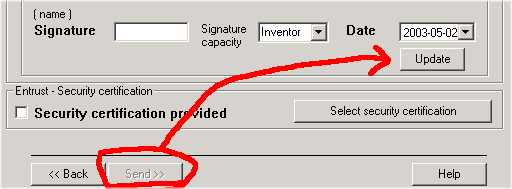
The way to overcome this problem is to find the "date" window. Below that window and immediately adjacent to it is a small button called "update" which looks like it is supposed to update the "date" window. It turns out that this button has nothing to do with the "date" window at all, and is perhaps the most important button anywhere in ePave 5.1. Click the "update" button and then the "send" button will become normal instead of grayed out. You can then click it to send your submission.
What to do if all forms display blank. Bob Rose reports:
We tried doing an IDS with ePAVE 5.1 and found that the forms all appeared empty when viewed. A call to the EBC elicited the following fix, which worked. We needed an updated XML parser 3.0 Service Pack 2. I went to www.microsoft.com and looked for the selection "Downloads" in the left side frame. In the page that opened, I entered XML Parser in the keyword entry box and searched. The top result of the search was the right file: MSXML Parser 3.0 SP2. I downloaded the file msxml3sp2setup.exe, placed it in C:\Windows\System32.exe and then executed it. That installed the updated parser, and when I reopened ePAVE the problem was fixed.